Proximate helps you never miss what matters on your screen, especially if you can't always take it all in at once. For the past few months, we've been busy squashing bugs and building out new features, and we're excited to share three big ones today, plus a peek at what's coming next.
Full-Screen Appearance Editor: more space for more people
As an accessibility-first productivity tool, Proximate needs to be as usable and helpful to as many people as possible. In our initial releases of Proximate, tool placement around the mouse pointer was limited and confined to a window, which was too restrictive for users with complex visual field deficits or those who enlarge our tools beyond the default sizes. As we added more features this summer, it also became clear that the window didn't leave enough room for users to visually organize every tool.
To address these issues, the solution became obvious: use the entire screen! And while we were working on that, we added several features to make arranging your tools easier and more precise:
- Click-and-drag to select multiple tools at once:
- Move or resize a group of two or more selected tools instead of having to work with them one at a time
- Automatically align a selection of two or more tools (top, middle, bottom; left, center, right)
- Evenly spread out a selection of tools automatically (horizontally, vertically)
- Placement of tools can now be adjusted pixel-by-pixel using your keyboard's arrow keys, either individually or as a group
- New "guide lines" appear automatically when tools move close to each other on the canvas, to help ensure precise alignment
- If you use multiple monitors, moving your cursor from one display to another will move the Appearance Editor to that screen so you can see how Proximate will look everywhere it can appear.
- Last, but not least, now when you select a tool in the Appearance Editor, a new sidebar will appear with customization options for you to preview on the canvas. The Settings menu is still the home base for managing and customizing all of Proximate's features.
Minifier: your whole screen at a glance
You've probably heard of a magnifier, or magnifying lens, before. They make small things appear much bigger. But what about a minifier? Well, if you've ever looked through the peephole of a door, you've used a minifying lens. And just like a peephole on a door, people with limited visual fields due to low vision conditions like retinitis pigmentosa use minifying lenses so they can see a wider amount of space in front of them within a narrower visual field.
But enough about doors and lenses. Proximate exists to meet accessibility and usability needs that have been overlooked for too long. Screen-based magnifying tools aren't new to computers, and they're essential for those who rely on magnification for accessibility. But screen magnification features in macOS, Windows, and standalone accessibility software only do "positive" magnification. There is no option to make anything smaller than 100% for anyone who may not be able to perceive the entirety of the screen (or screens) in front of them. To close this gap, we are excited to announce that we've added a digital minifier to Proximate.
The Minifier in Proximate helps users know if and where they may need to redirect their attention; it's not necessarily a replacement for actually using the physical screen itself. The example screenshot below was taken on a 16" MacBook Pro. In the foreground is Google Docs, and in the background on the right is Devin, one software tool we use to build Proximate. Devin is often running tasks performed by AI agents and needs regular supervision. Now, let's say you're writing a blog post in Google Docs and can only perceive the area around where you're typing, seen below in the oval on the left.
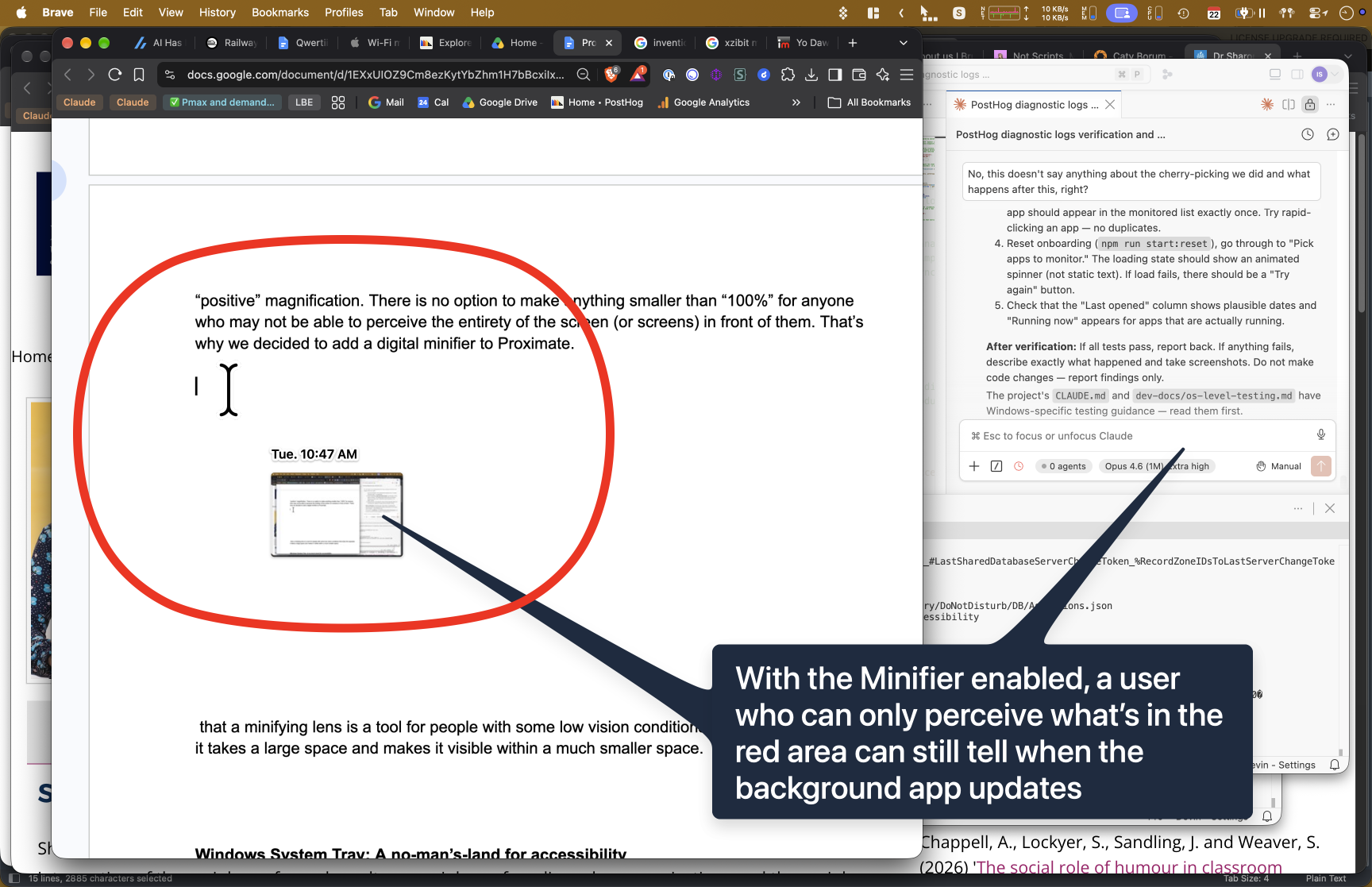
Without the Minifier, you have to physically move your head or eyes to scan the full screen for changes, which can become frustrating and exhausting. Or you might switch focus between apps frequently, which is also time-consuming and distracting. With the Minifier enabled, it's easy to spot when the right third of the screen has updated. You don't need to guess whether Devin needs a check-in because even though it's small, you can still clearly see in the Minifier exactly when Devin updates.
Proximate's Minifier packs a lot of functionality in a small space to support different needs and hardware configurations:
- Support for minifying up to 4 displays simultaneously
- Select one, some, or all displays
- Drag-and-drop settings interface makes it easy to arrange and resize individual screen thumbnails
- Minifier thumbnails are easily placed and resized as a group using the Appearance Editor
- Region capture options (single-display):
- Always show the full display
- Always show a single fixed region on-screen
- Always show a fixed region that follows the cursor as it moves
- Refresh rate selection:
- Low (~15fps)
- Medium (~30fps)
- High (~60fps)
Indicators: your computer's status, by your mouse pointer
The first tool built for Proximate was for app notifications because they only lived in the corners or edges of screens, exactly where many users may not be able to see them. But you know what else lives in the corner of your screen? Little icons and utilities that tell you how your computer is currently set up: your volume level, Wi-Fi or network status, battery and charging status for laptops, and more.
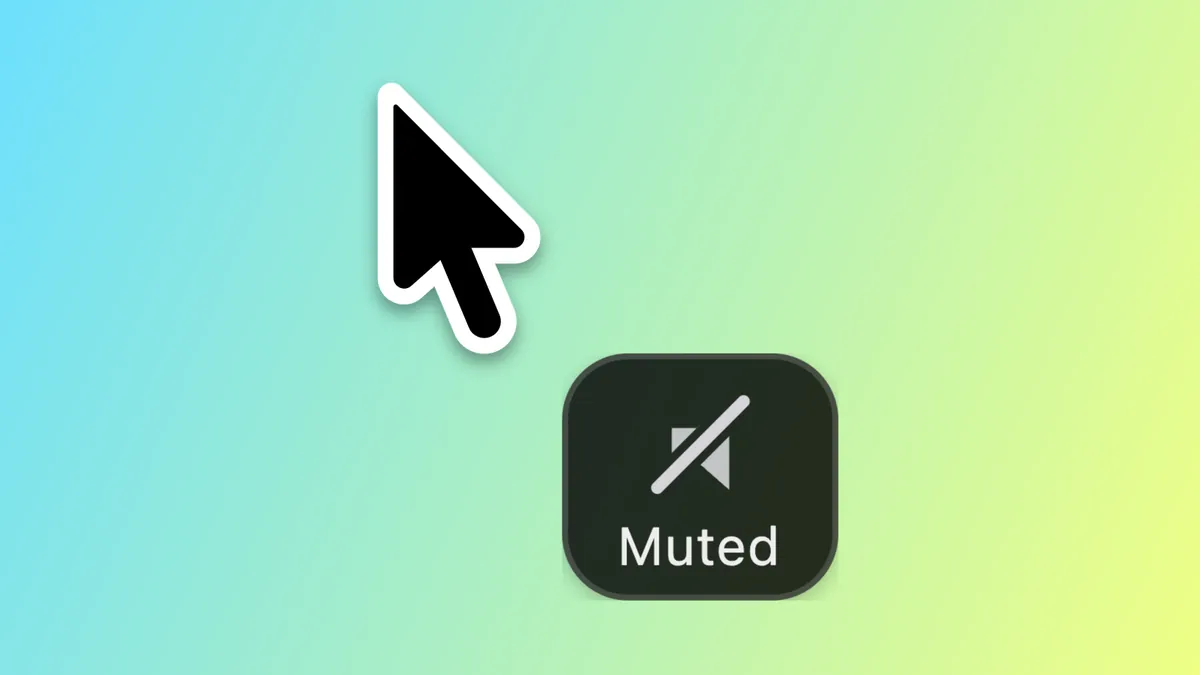
To make sure you're never caught off-guard and can always tell when a system setting changes, we've added a new Indicators tool to Proximate. When enabled, you can choose to see icons and info about your system by your mouse pointer in real time:
- Volume level
- See current volume level
- See if muted
- Always displays the level for the active audio device (i.e., it updates when you switch between internal speakers and a Bluetooth audio device)
- Network status
- See Wi-Fi connection strength (if connected by Wi-Fi)
- See if/when the current network connection fails
- Auto-detection or manual selection of which network interface to monitor
- Battery and power status (for laptops)
- See when external power is connected or disconnected
- See current battery level and charging status
- Focus Mode status (for macOS only)
- Displays an icon that corresponds to a specific Focus mode, if currently enabled (Do Not Disturb, Work, Sleep, Mindfulness, Reduce Interruptions)
- Print Job status
- See when print jobs are active or pending
- See print job progress
- See if there are errors or interruptions with active print jobs
You decide when each Indicator shows up, and when it gets out of the way:
- Always visible
- Only show if a value changes
- Only show if a value meets certain criteria (above/below a certain value or within/outside a certain range)
- Hide automatically after a number of seconds you choose
- Hide with the "Wipe Icons" keyboard shortcut
- Show or hide values/labels
And you can make them look the way you want:
- Select from multiple styling options for Indicator icons and their container
- Choose custom colors per Indicator, or monochrome options to match light mode or dark mode
- Change the text size of values/labels
- Place, resize, and customize Indicators using the Appearance Editor
Some people like to keep an eye on everything, all the time. Others would rather not see a thing until something changes. Indicators are built for both, and everything in between, so you can set up each one exactly the way you like.
Either way, the little surprises that used to hide in the corner of your screen won't catch you off-guard anymore: wondering why a video has no sound until you realize your volume is muted, finding out your laptop wasn't charging only when the low-battery warning pops up, or staring at a page that won't load before you notice your Wi-Fi dropped. Now you'll see those changes right where you're already looking.
What's next
We have a lot more planned for Proximate. Next up is a new tool for anyone who could use some support with time management: it will help you keep track of calendar events as they approach, while they're happening, and even when they run over. More on that when it's ready.
In the meantime, whether you use Proximate for accessibility, productivity, or a bit of both, we hope the Minifier, Indicators, and the new Appearance Editor make your screens a little easier to live with. If you haven't tried Proximate yet, download it for Mac or Windows and try everything free for 14 days.
And if something isn't working for you, or there's something you wish Proximate could do, we want to hear it. You know your needs better than anyone. Write to us anytime at hello@getproximate.app or through the Send Feedback item in the menu.